“Compress PDF” hides two separate knobs: resolution (how many pixels each page or image keeps) and encoding quality (how hard JPEG squeezes those pixels). Which knob matters depends on what is inside your file. Rather than quote typical numbers, we measured.
Test setup
- Text report — 20 pages of typed text, tables and vector charts (96 KB).
- Scanned document — 6 pages, 300 dpi grayscale with paper noise and slight skew (2.9 MB).
- Photo deck — 8 widescreen slides with full-bleed photographs (4.0 MB).
- Long report — a public 245-page technical report, mostly text with charts and screenshots (22.6 MB).
Each file went through kompakt’s browser compressor (Chrome on a Mac) at low / medium / high, and through Ghostscript 10.07 with the presets the kompakt desktop app uses (/screen, /ebook, /printer). Sizes are in binary units (1 MB = 1,048,576 bytes), as the compressor displays them.
Scans: resolution is everything
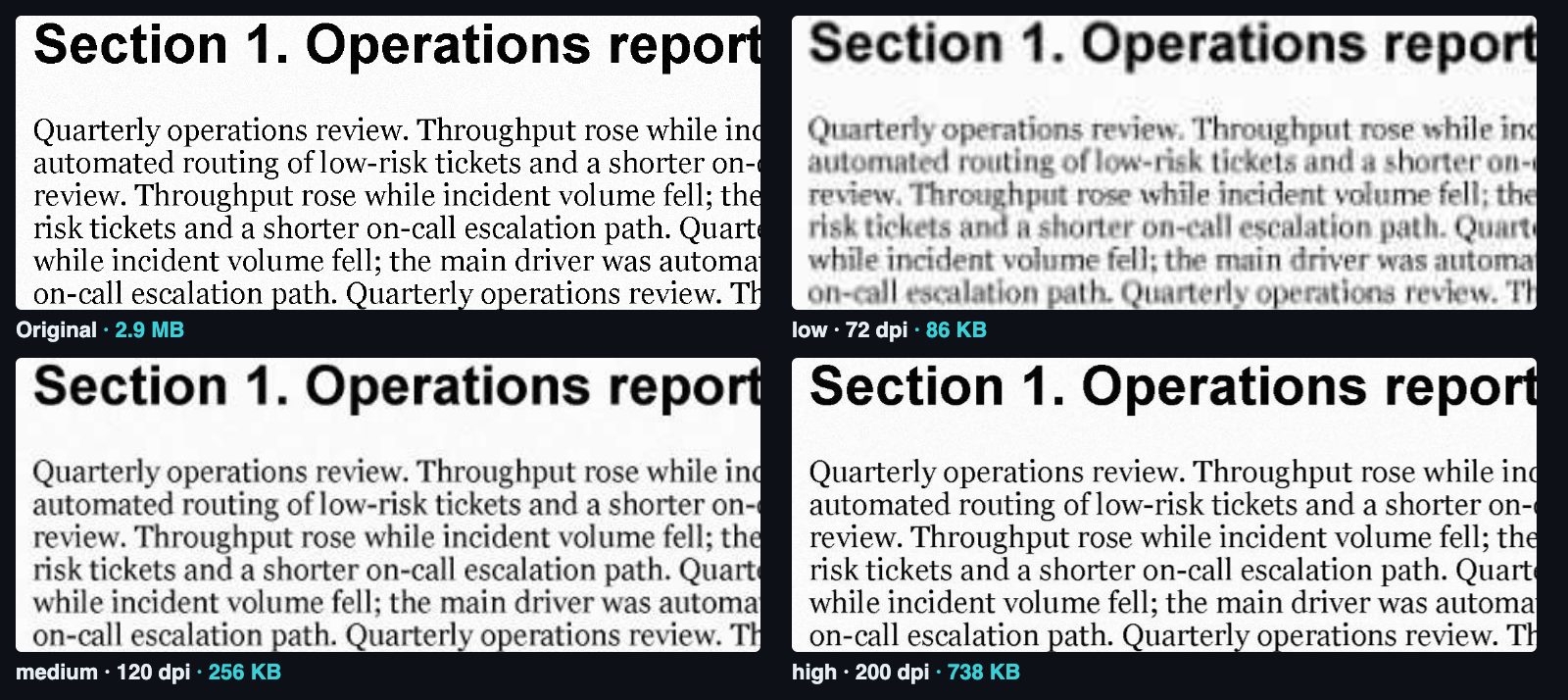
| Scanned document, 2.9 MB | Browser | Ghostscript |
|---|---|---|
| low | 86 KB (−97%) | 116 KB (−96%) |
| medium | 256 KB (−91%) | 328 KB (−89%) |
| high | 738 KB (−76%) | 2.9 MB (0%) |
A scan is pure pixels, so cutting resolution from 300 to 120 dpi removes about 84% of them before JPEG even starts. Both engines land in the same place at low and medium. Ghostscript’s print preset deliberately keeps 300 dpi, so it barely touches the file.
Photos: the JPEG setting starts to matter
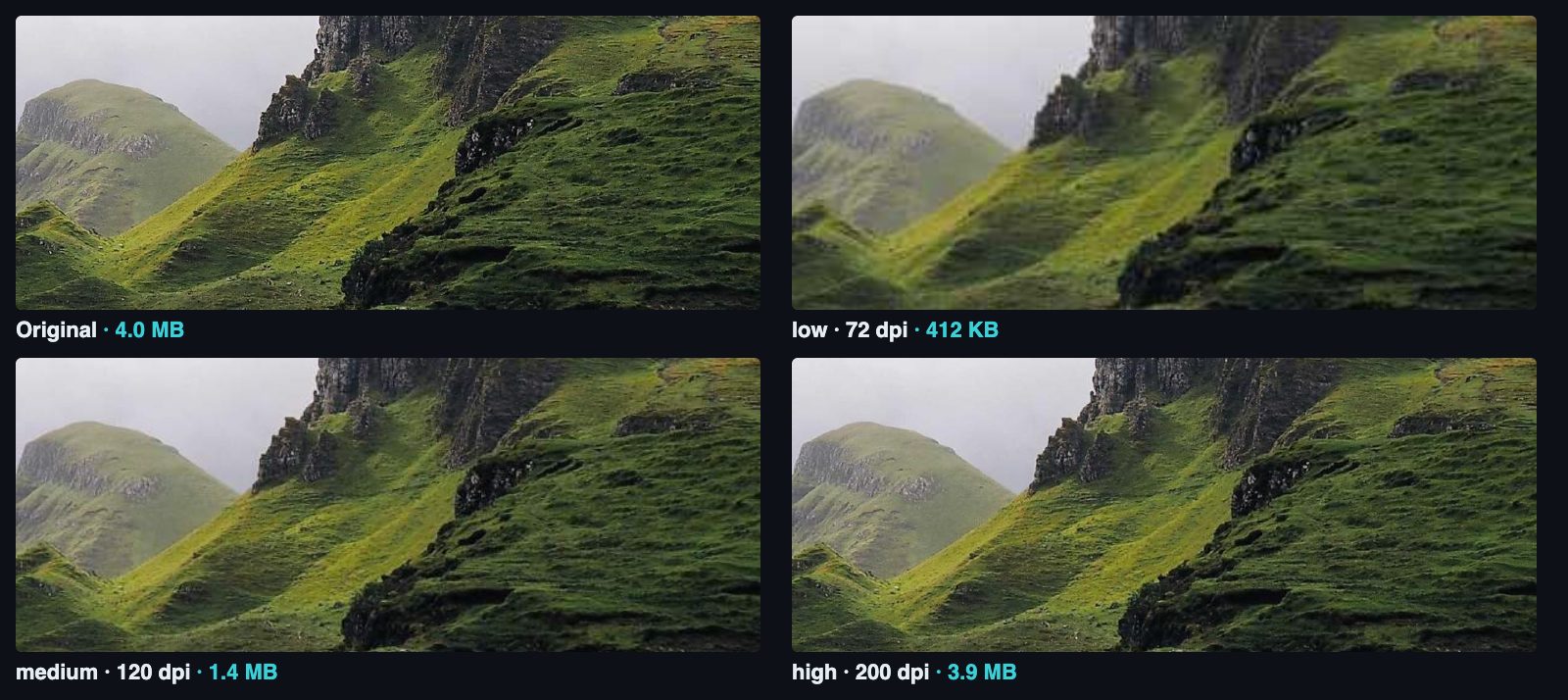
| Photo deck, 4.0 MB | Browser | Ghostscript |
|---|---|---|
| low | 412 KB (−90%) | 684 KB (−83%) |
| medium | 1.4 MB (−66%) | 3.8 MB (−5%) |
| high | 3.9 MB (−3%) | 4.0 MB (−1%) |
The photos in this deck were already JPEGs at about 180 pixels per inch of slide. Ghostscript’s /ebook preset only downsamples images above its 150 dpi threshold (with some tolerance), so it left them mostly alone. The browser re-encodes everything, so medium already gives a real saving. High is close to the original — use it only when the deck will be printed or zoomed into.
Text documents: the browser makes them worse
| Document | Browser low | Browser medium | Ghostscript low | Ghostscript medium |
|---|---|---|---|---|
| Text report, 96 KB | ~11× bigger | ~31× bigger | −11% | −11% |
| Long report, 22.6 MB | 13.3 MB (−41%) | bigger | 3.8 MB (−83%) | 7.8 MB (−66%) |
A typed page is a few kilobytes of drawing instructions; the same page as a picture is tens or hundreds of kilobytes. The browser compressor detects this and tells you to keep the original. Ghostscript, on the other hand, keeps text as text (all 70,329 words of the long report were still extractable afterwards), subsets fonts and downsamples only the embedded images — which is exactly what a mostly-text document needs.
Speed, for completeness: the browser handled the 245-page report in about 10 seconds; Ghostscript took about 96 seconds at low and medium. Speed is rarely the deciding factor — what is inside the file is.
Which setting to pick
| You want to… | Setting |
|---|---|
| Email a scan or a photo-heavy PDF | Browser, medium |
| Get under a hard size limit (portal upload, 10 MB email) | Browser, low — then check the smallest text |
| Print it, or zoom into details | Browser, high |
| Keep text selectable / searchable | Desktop app (Ghostscript), medium |
| Shrink a long, mostly-text report | Desktop app (Ghostscript), low or medium |
How the browser side works, and the three bugs these measurements uncovered: inside the browser compressor.